Assistance
OverRender OverText 2022 Assistance
OverRender OverText 2022 Assistance
OverSuite Online > Assistance > OverText 2022 Assistance > Opening a document from an Internet location
If you ever need to download a .RTF or .OVTXT document from a Web server to modify
it, you can do it directly in OverText. Follow one of the following procedures to achieve this:
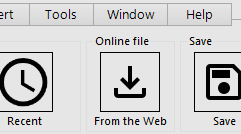
Using the Ribbon
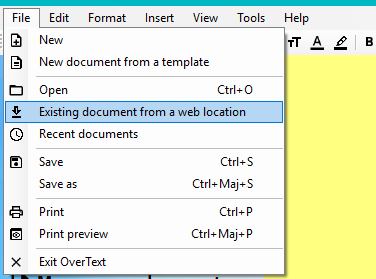
Using the Menus
This will open the following dialog box: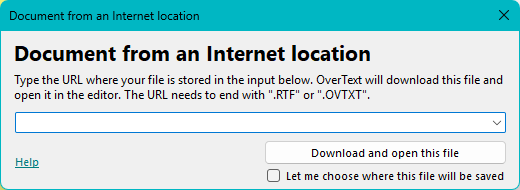
OverText 2022 File from the Web dialog box
Once open, type the URL of the .RTF or .OVTXT
document you want to download. The file must be valid, as it won't be opened otherwise. The URL must also
use valid protocols, such as HTTP or HTTPS.
Service Pack 4 and newer versions give you the ability to choose where the file will be saved. If you leave
the checkbox unchecked, it will be saved to a temporary location, and OverText will ask you to "save it as"
upon closing.
Please note that older versions of OverText 2022 do not have the "Let me choose where this file will be
saved" checkbox. In case this checkbox is not there, the downloaded document will automatically be saved to
a temporary folder, and OverText will prompt you to save it elsewhere on closing.