Formatting the text to make it look better
Quick Notice
Formatting options heavily depend on what version of OverText you're running. Older versions might not have all (if not any) of the formatting options mentioned on this page.
Any version
Through time, OverText got more and more formatting options added. This included basic tasks such as combining bold and underline to subscript and superscript, and many others.
Using the Ribbon
Using the Menus
Using the Ribbon:
In the Ribbon, most of the available formatting options are located in the Home tab.
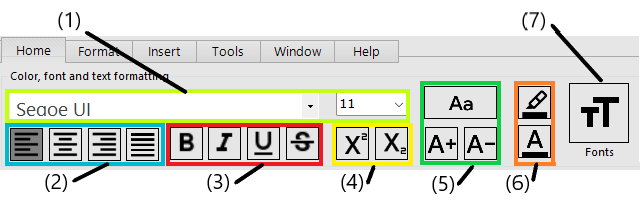
Caption:
- (1) Font and Size dropdowns;
- (2) Text alignment: Left (Ctrl + L), Middle (Ctrl + M), Right (Ctrl + R), Justify (Ctrl + J);
- (3) Font styles: Bold (Ctrl + B), Italic (Ctrl + I), Underline (Ctrl + U), Strikethrough (Ctrl + T);
- (4) Superscript (Ctrl + W), Subscript (Ctrl + G);
- (5) Case: Change case (Ctrl + K), Increase font size, Decrease font size;
- (6) Font color: Highlighting color (F4), Text color (F3)
- (7) Fonts button: Advanced font properties (F2).
Using the Menus:
In the Menus, the most common formatting options are shown in the toolbar, located underneath the dropdown menus.

- (1) Fonts and text color: Advanced font properties (F2), Text color (F3), Highlighting color (F4);
- (2) Font and Size dropdowns;
- (3) Font styles: Bold (Ctrl + B), Italic (Ctrl + I), Underline (Ctrl + U), Strikethrough (Ctrl + T);
- (4) Case: Change case (Ctrl + K), Increase font size, Decrease font size;
- (5) Text alignment: Left (Ctrl + L), Middle (Ctrl + M), Right (Ctrl + R), Justify (Ctrl + J);
- (6) Superscript (Ctrl + W), Subscript (Ctrl + G).
 OverSuite Online
 OverRender.com Home