Assistance
OverRender OverText 2022 Assistance
OverRender OverText 2022 Assistance
OverSuite Online > Assistance > OverText 2022 Assistance > How to search for a string in the text editor
In OverText 2022 Service Pack 3 and newer, searching for text in your documents is easier than ever. Like most text editors, OverText gives you the ability to find, replace and count multiple occurences of a specific string in your current document.
To do so, follow the above procedure:
To open the Find & Count dialog box, press Ctrl + F on your keyboard, or:
Using the Ribbon
In the Home tab, click the magnifying glass icon next to the "Find" label. Same goes for the "Replace" feature.
Using the Menus
In the View dropdown menu, click "Find" or "Replace". Both options have magnifying glass icons.
Both procedures will open the following dialog box (Find & Count):
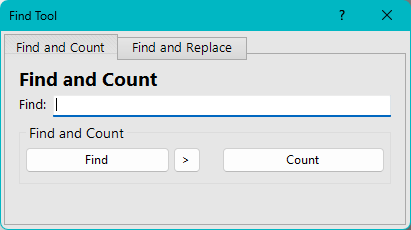
Find & Count dialog box
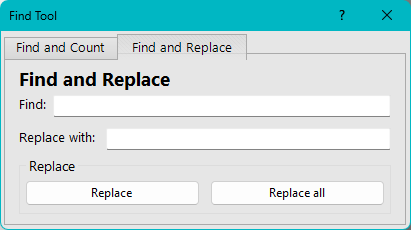
Replace dialog box
Simply type the text that you want to replace or you're looking for, and click the appropriate button located underneath ("Find", "Count", "Replace" or "Replace all"), and you'll be good to go!
In case you're searching for a word, OverText will highlight the next occurence of the string in your current document, and display an error if there's none.
If you're replacing text, OverText will scroll to the text you've just replaced (except if you click "Replace all", which go straight to the last occurence).
Please note: Versions older than Service Pack 4b are case sensitive. SP4b introduced a checkbox for that, to enable or not case sensitivity when searching, counting or replacing text. SP4b also has no "arrow" button next to the "Find" button. The "Find Next" feature is built-in the "Find Button".
It's that easy! You can refer to this How To article in your software at any time, by clicking the "?" button next to the closing cross.